



Connecting an Android Watch to SPIVI
CONNECTING AN ANDRIOD WATCH TO SPIVI
Step 1: Download the Spivi.Connect app on your Android watch (WearOS).

- Open the Play Store from the Android Watch.
- Tap Search, and search for Spivi.Connect.
- Tap Download, and download the Spivi.Connect app to your watch.
Step 2: Launch the Spivi.Connect app and give it permission to update your Health data.
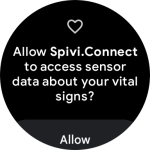
- Select Allow to access the next screen.
Step 3: Navigate to the pairing screen on the Spivi.Connect app
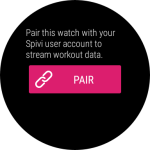
- Swipe right to view the Pairing screen.
- Select the Pair option.
Step 4 (a): Use the QR code to pair your Android watch with your Spivi account
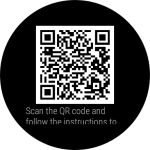
- Using your smart phone, scan the displayed QR code with a free QR code scanning app.
- Follow the on-screen instructions.
- Skip Step 4(b).
Step 4 (b): (Optional) Manually enter the Heart Rate ID displayed into your Spivi account
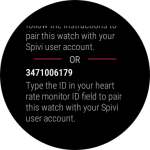
- Log into spivi.com, and navigate to Account & Settings.
- Select Heart Rate Strap ID
- Type in the ID displayed on the Spivi.Connect app, into the Heart rate ANT+ device ID field on spivi.com, then select Save Changes.
Step 5: Live stream your workout data to Spivi
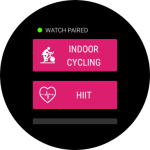
- Make sure that you are already logged into a workout on your club’s Spivi system.
- You should see your name appear on the screen.
- Select Indoor Cycling if you are participating in a workout that uses the Spivi Studio, Spivi Metrix, or Spivi 365 systems.
- Select High Intensity Interval Training if you are particpating in a workout that uses the Spivi Arena system.
Step 6: Enjoy your workout!
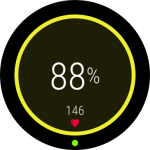
The following performance data will be displayed on your Android Watch:
- Center: Heart Rate Zone in %Max HR units + Zone Color.
- Bottom: Heart Rate in BPM units.
- Bottom Center: Spivi Cloud connectivity indicator will be visible and green when connected to Spivi Cloud.
When connected to the Spivi Cloud and logged in to a Spivi system live heart rate & calories data will be reflected on the Spivi system.
Step 7: Finish the workout
- To finish a workout, swipe left or right to go back to the main screen.
Step 8: Review your workout
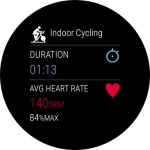
- Review your workout summary, including duration, burned calories, heart rate ranges, and heart rate zones durations.